An AI can build and play a patch with you in the open ModularSynth tab: add modules, patch cables, turn knobs, write sequences in the Note Grid, play notes, start the clock, save scenes and chain them into a song. It shows you what it is talking about: a module, a knob or a jack lights up, and the cable to patch is drawn as a dotted line.
What you need
- An AI app on your computer that can use tools (MCP): the simplest is Claude Desktop, with a Claude account. Its price depends on the plan you choose with Anthropic, not on ModularSynth.
- ModularSynth and its MCP server are free.
- The easiest path: Claude Desktop and the extension to download, no terminal needed. The other ways (Claude Code,
npx) are for the curious who are comfortable with the command line.
How it works
ModularSynth provides an MCP server (Model Context Protocol) that runs on your computer. Your AI app talks to it, and it relays to the synth’s tab. Everything happens locally.
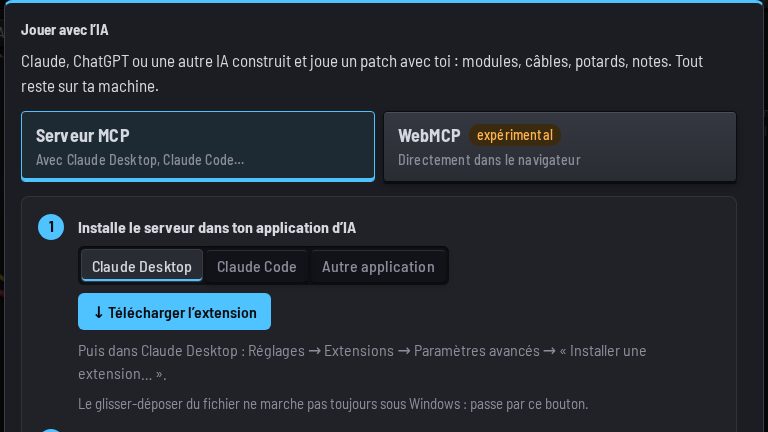
To set it up, click AI in the top bar: the window guides you through three steps.
1. Install the server in your AI app
- Claude Desktop: click Download the extension, then in Claude Desktop: Settings → Extensions → Advanced settings → “Install Extension…”.
- Claude Code: copy the command shown in the AI window and paste it into a terminal.
- Another app: add the server to its MCP configuration, or run it yourself with
npx -y modularsynth-mcp(Node 20 or later).
2. Connect this tab
Tick Connect this tab to the server: the status turns to “connected”.
3. Ask for anything
For example: “Make me an acid bass looping at 128 BPM.”
You stay in control
Every AI action can be undone with Ctrl+Z, just like yours. For a real saxophone or a voice, it suggests the Sampler or the Audio input. It knows the Sampler kit and your own sounds, and can also build drums out of modules.
Without installing anything, Chrome also offers WebMCP, still experimental.